MartialMatch is affordable and easy to use tournament software for combat sport events.
Every academy on MartialMatch now has a real roster: the people who belong to it, the role each of them plays, and (if you're a Manager) control over who gets to join. This article explains how membership, roles, and approval work, and how to manage your academy's Members tab day to day.
Roles: Manager, Coach, Member
Each person who belongs to your academy has exactly one role:
- Manager - can manage the academy's information, images, approval settings, and members. There can be more than one Manager on the same academy.
- Coach - shows up as an eligible coach on the organizer's coach-pass list for events your academy is registered at (see the companion article for organizers, linked below).
- Member - a regular affiliated athlete/competitor with no management or coach-pass privileges.
Anyone who joins an academy - whether automatically through registering for an event or by requesting to join directly - starts out as a Member. Nobody is promoted to Coach or Manager automatically; a Manager has to do that explicitly from the Members tab.
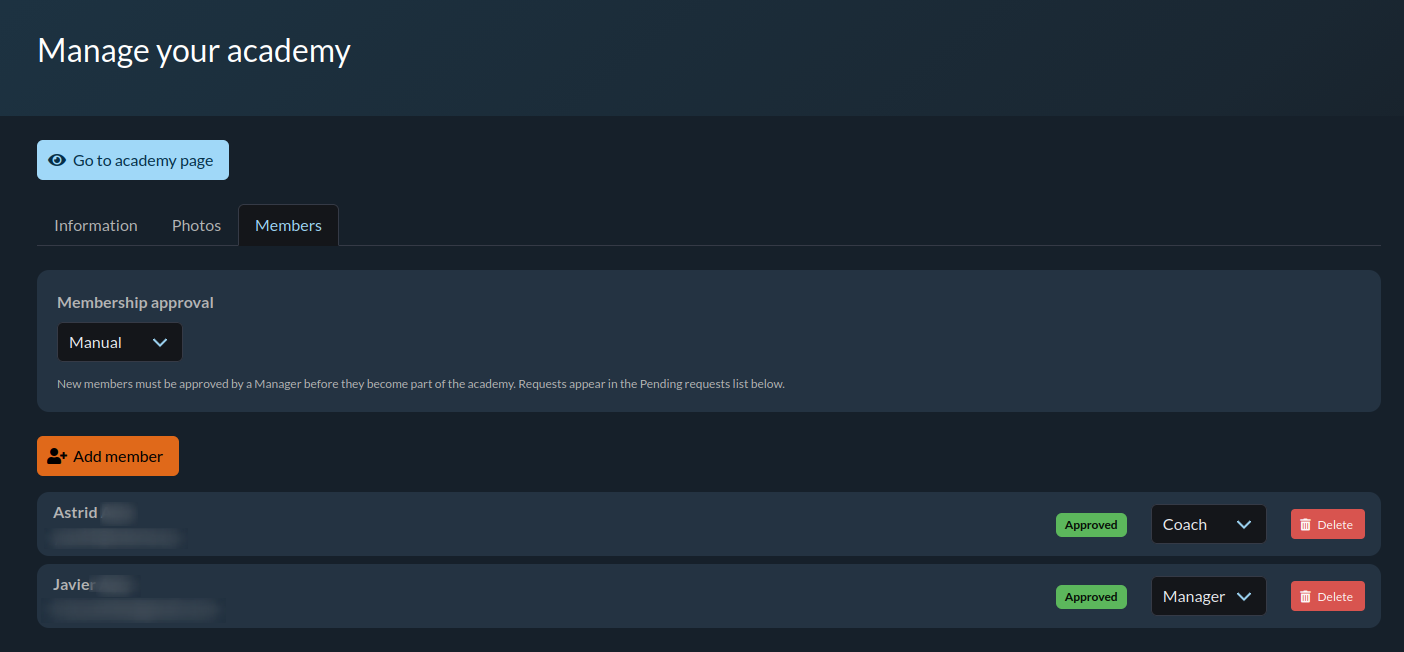
Where to manage your academy
Open Manage your academy, then go to the Members tab. From there you can:
- see everyone who belongs to the academy, along with their role and status,
- change how new join requests are handled (Automatic or Manual approval),
- approve or reject pending join requests (Manual mode only),
- change a member's role,
- add a member yourself, including someone who doesn't have a MartialMatch account,
- remove a member, or leave the academy yourself.
Automatic vs. Manual approval
Every academy has an approval mode, shown at the top of the Members tab:
- Automatic (the default) - anyone who requests to join is approved immediately, with no action needed from a Manager.
- Manual - a join request is held as Pending until a Manager approves or rejects it, from the same member list. Pending members can't be removed directly - they're either approved or rejected first.
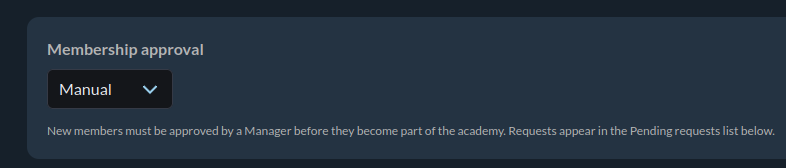
Switching an academy from Manual back to Automatic immediately approves every request that was still pending - nothing is left stuck waiting.
One thing Manual mode does not do (at least for now): it doesn't block anyone from registering for an event under your academy, and it doesn't change which academy a competitor represents. Manual mode only controls who is allowed to appear as a Coach or Manager - see the "Pending members and coach passes" note below.
Adding a member
You can add someone to your academy directly from the Members tab, without waiting for them to join themselves.
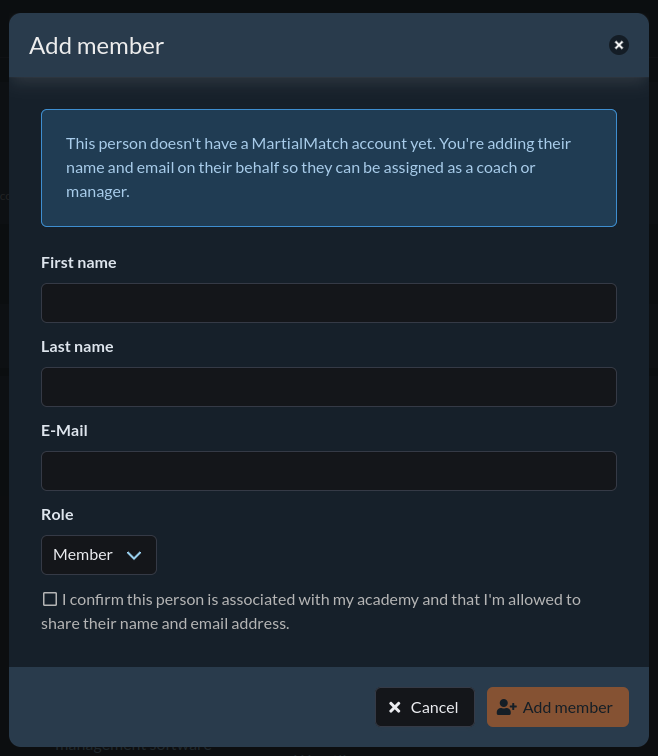
If the email you enter belongs to an existing MartialMatch account, that account is added as a regular Member right away. If it doesn't, MartialMatch creates a placeholder row for a real person (for example, a head coach) who simply hasn't created an account yet, shown with a No account tag. A "No account" member can still be assigned the Coach or Manager role and appear on an organizer's coach-pass list, even without ever logging in.
Whichever happens, you won't be told which - this is intentional, so that adding a member never reveals whether a given email address already has an account on MartialMatch.
Whoever you add this way starts as a Member; use the role control on their row afterwards to promote them to Coach or Manager if needed.
The person you added gets an email
Since you're entering someone else's name and email on their behalf, that person receives an email letting them know they were added as a member of your academy, with a link to opt out if this was a mistake or they'd rather not be listed. You should only add someone this way if you're confident they're actually associated with your academy.
If a "No account" member later creates their own account
If the email you used for a "No account" member later signs up for a real MartialMatch account (using that same email), their row is automatically linked to that new account - the role you assigned (Coach/Manager/Member) carries over, and no re-entry is needed on either side.
Removing a member or leaving
- A Manager can remove any other member from the academy.
- You can't remove yourself - instead, use Leave this academy for your own row.
The last Manager can't be removed or demoted
An academy always needs at least one Approved Manager. If you're the only one, you can't remove yourself, leave, or change your own role away from Manager - promote someone else to Manager first, then step back if you need to.
My academy doesn't have a Manager at all
If your academy predates this membership system and nobody was ever recorded as its creator, it may not have a Manager assigned, and there's no member to promote into that role. See How to take over academy management? for how to resolve that through support.